¶ Rates
¶ Tax Rates screen usage
To define all the taxes rating, related and required information.

¶ Tax Rates screen fields
Main Tax Rates screen - Automatically shows a table with all the predefined tax rates.
¶ What is the information shown in the Tax Rates table?
Title: tax’s name - to be presented in the bill.
Key: unique tax’s key - for use by the system - Not editable.
¶ How to search for an existing tax rate?
Taxes’s rates can be found by searching a value in the “Search for…” input field above the Rates table.
The value will be searched by a specific field that should be checked in “Search in fields” drop down list button.
Press Enter or the magnifier (search) button to activate the search.
The eraser button next to the magnifier (search) button is for resetting “Search for…” input field.
¶ How to edit an existing tax rate?
Taxes’s rates values can be edited by pressing the pencil on the right side of each line in the Rates table.
Edit Tax Rate screen - Filled with the selected tax’s data when in edit mode.
¶ What are the fields shown in the Edit Tax screen?
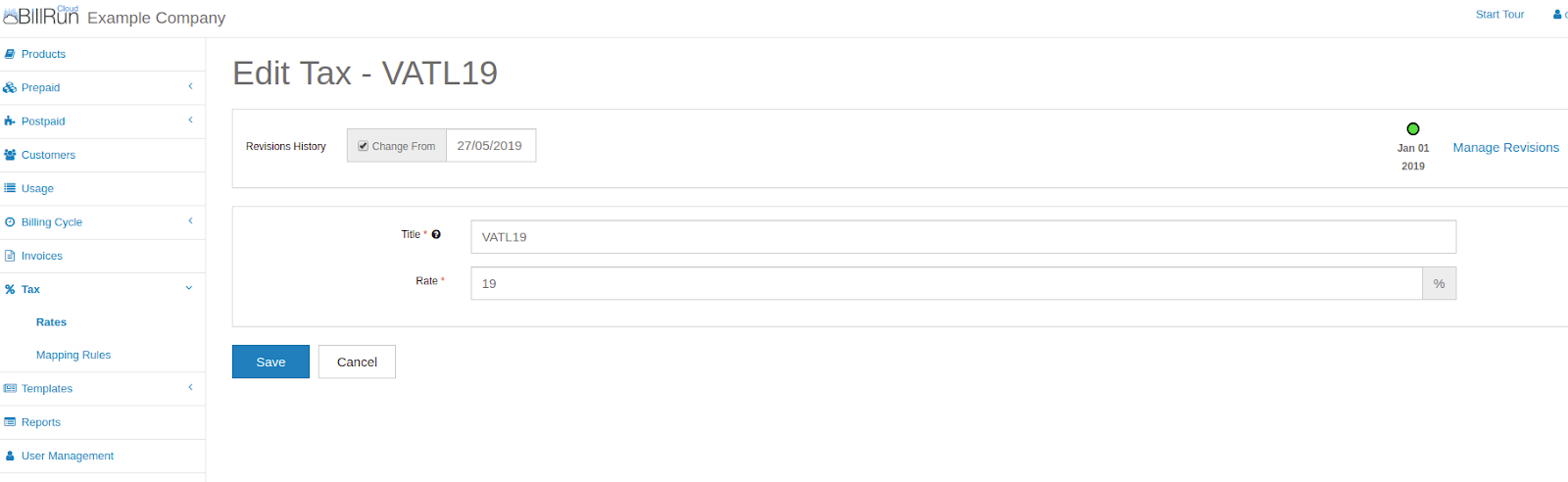
Title: tax’s name - to be presented in the bill.
Rate: the tax rate, as a percentage field.
¶ How can I add new Tax Rate?
Press the “Add New” button on the upper right side of the Rates table in the main Tax Rates screen.
Fill up all the fields as described in “What are the fields shown in the Edit Tax screen” section, and press Save.
¶ Custom fields
Enables custom fields to be added to the tax rates screen.

¶ What is the information shown in the Custom fields - “Tax” Rates table?
Key: tax name.
Title: tax title - as shown in the screen.
Type: field’s type - text/boolean etc.
¶ How can I add new Tax Rate?
Press the “Add New Field +” button on the left bottom corner of the Custom Fields table.
Fill up all the fields on the “Create New Tax Field” window:
Key: unique field’s key - for use by the system - Not editable.
Title: tax’s name - to be presented in the bill.
Field Type: field’s input type - text, boolean, percentage etc.
Description: field’s description - appears when you mouse over the question mark to the left of the field’s name.
Help Text: short text - will appear below the field’s name.
Options: Check the required attributes for the field.
Preview and Default Value: insert default value, if needed.
Press Save.
¶ Tax tab(products/plans/services)
(Screenshots are taken from plan tab, but it refers to each of the entities - plan/service/product).

On each one of the entities: products/plans/services, you can find the “Tax” tab, in which you can define the tax mapping, for this entity:
- The entity isn’t subject to taxation. (tax isn’t relevant at all).
- Use global mapping rules. (mapping will be only according to your definition at “Tax->Mapping”).
- The entity implies a specific tax rate. (specific tax for this entity):

Choosing this option, you need to select (using the drop down) one of the taxes you defined in “Tax” -> “Rates”, or the default tax.
Also, choose:
1. “Override global mapping rules” - this option means that when calculating tax, for this certain entity, the tax rate will be the one you chose here, regardless of the “Tax-> Mapping Rules”.
2. “Apply if tax rate not found via global mapping rules” - this option means, that when calculating tax, the first priorities to be considered by the tax calculator, will be those from the “Tax-> Mapping Rules”. If no priority is relevant, then the tax you defined here, will be considered.
4. Use default tax rate. (for this entity, the tax will be the default tax rate).
¶ Mapping Rules

The first 3 priorities represented are:
- Use product/service/plan override tax rate if defined - this priority chooses the entity’s “Tax” tab choice you made, first. (in case you chose the relevant entity, on the “Tax” tab - “Entity implies a specific tax rate”, this priority will be considered only if you also “Override global mapping rules”).
- Use tax rate referenced by product/service/plan - this priority chooses the “Tax -> Mapping Rules” priorities, first. Only if non of the Mapping Rules isn’t relevant, it checks the entity’s “Tax” tab choice you made. (in case you chose the relevant entity, on the “Tax” tab - “Entity implies a specific tax rate”, this priority will be considered only if you also chose “Apply if tax rate is not found via global mapping rules”).
- Use default tax rate - in case non of the priorities above was relevant, you can choose that the calculator will rate the tax, for the relevant entity, using the default tax rate.
¶ Adding custom priorities
You can add custom priorities, that will be added between the first and second initial priorities.
When adding a new priority, you can choose any of your CDR fields, and give it a priority, using the tax fields.
For example:
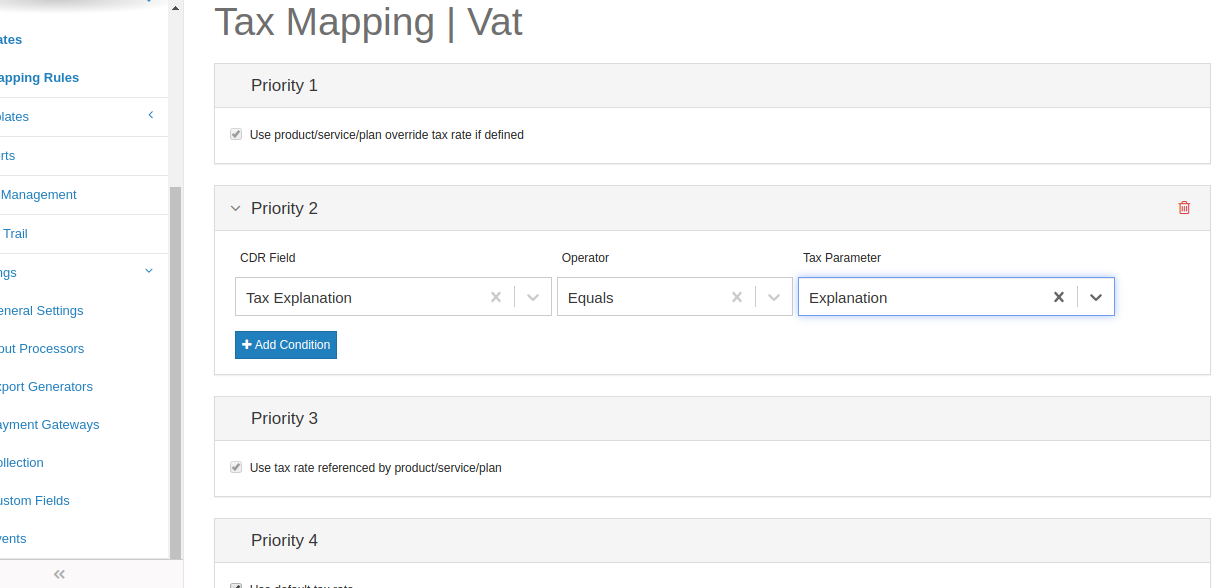
You can take a CDR field, “Tax explanation”, which contains the tax explanation, for example: “VAT Out Of Scope”, and choose that the tax calculator will check if the CDR line has “Tax explanation”, and if it does, it will choose it’s tax according to the tax explanation. If the CDR doesn’t have “Tax explanation” - it will get tax according to the next priority, in this case - the default one.
¶ Tax in reports
Building a new report, you can insert tax information to the report, and also choose the report data, using conditions on taxes.
Tax information in the report:
¶ Columns
At “Reports” -> “Add new” -> “Columns” - one of the fields you choose to display on report, can be one of the tax’s basic/custom fields.
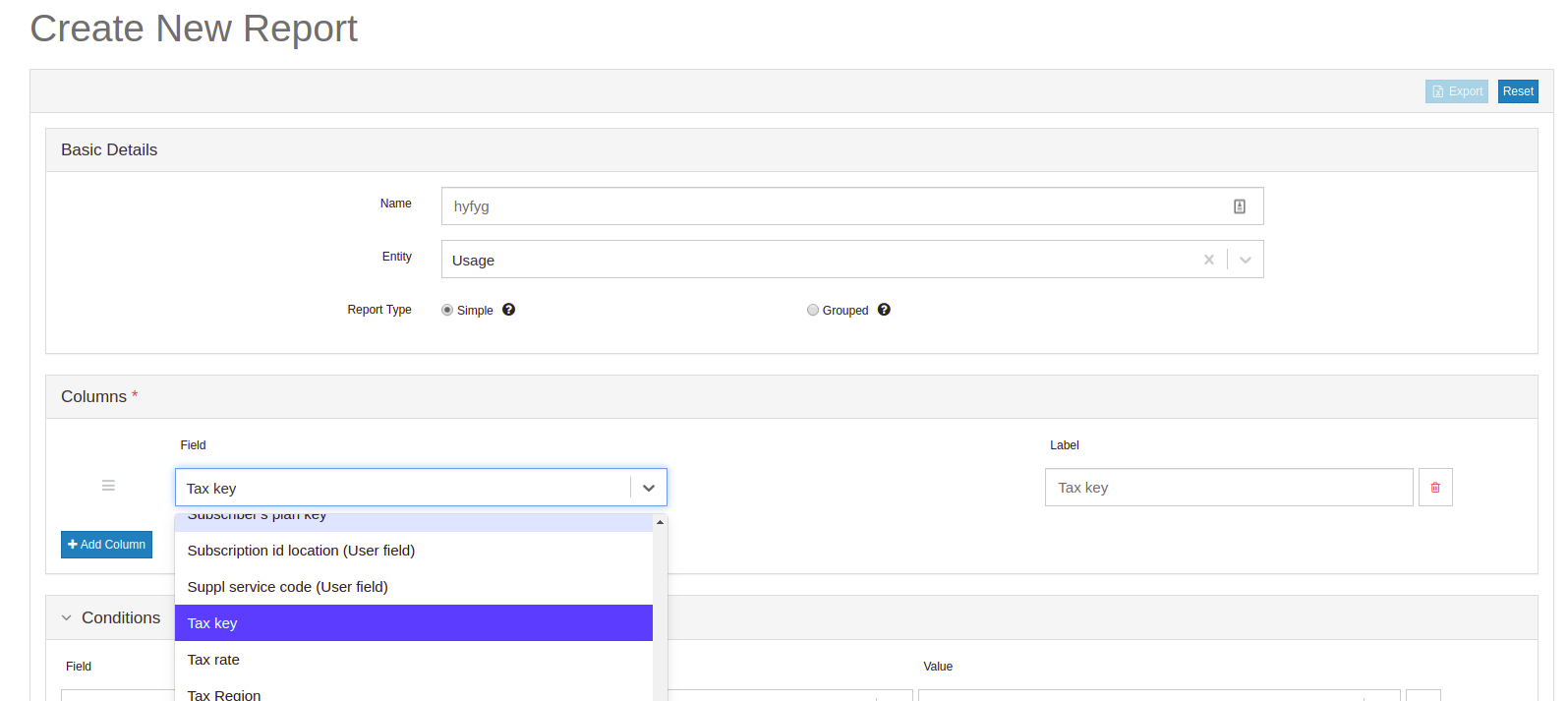
Now, after you chose the wanted field, you can pick it’s label for your report. For example, at the screenshot, the wanted field is “Tax key”, and it’s label on the report will
be “Usage’s Tax key”.

¶ Conditions
At “Reports” -> “Add new” -> “Conditions” - one of the fields you choose for your report’s conditions, can be one of the tax’s basic/custom fields.

Now, depending on the field you have selected, you can select an operator, as well as a second field. For example, you can filter and display in the report only the lines whose tax key is a particular key:

Also, you can filter and display in the report only the rows whose tax amount is under the amount you choose:
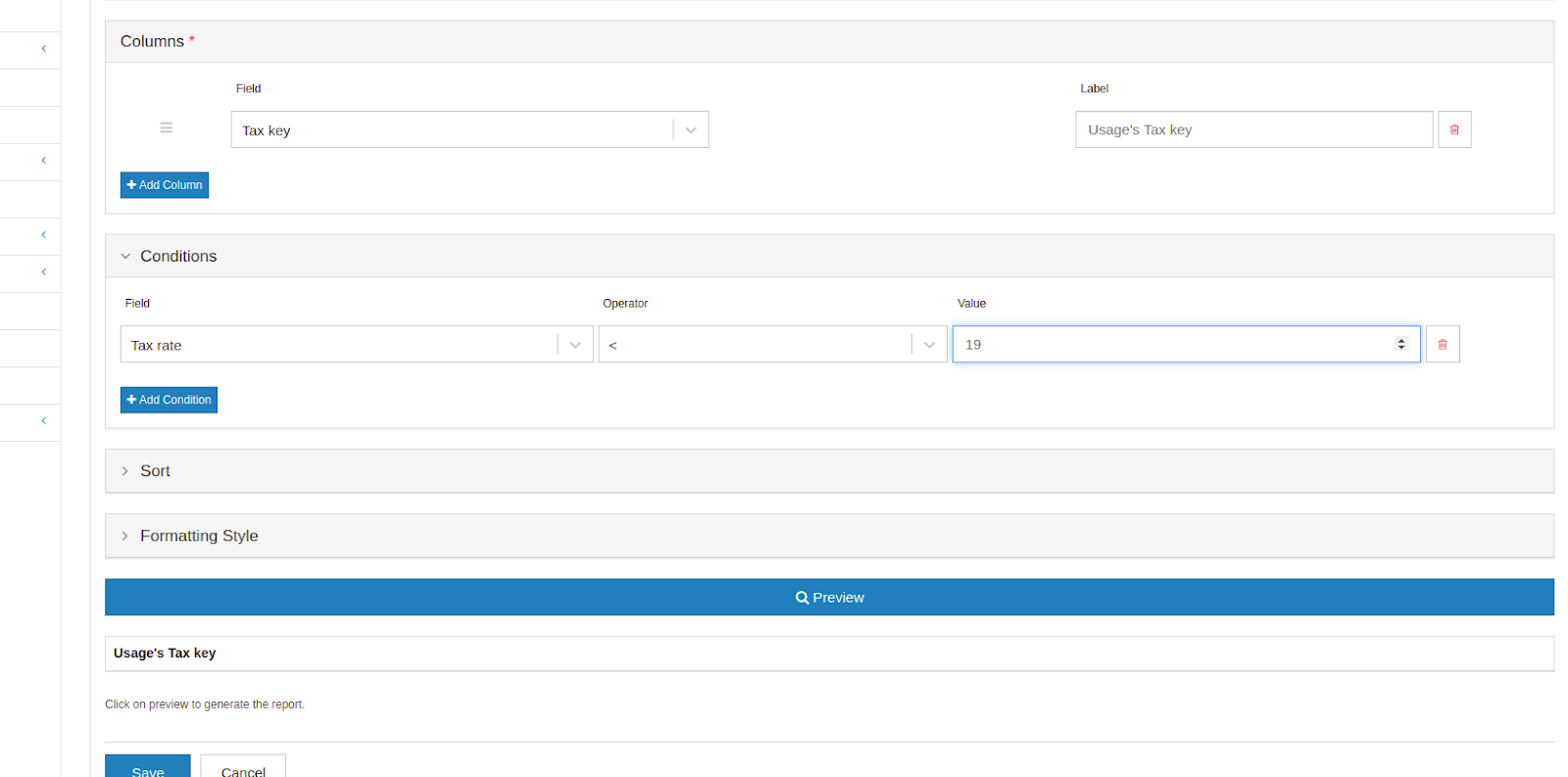
Building a report, you can find a variety of operators to choose from, depending on the field selected.
¶ Tax settings
¶ General Settings -> Tax
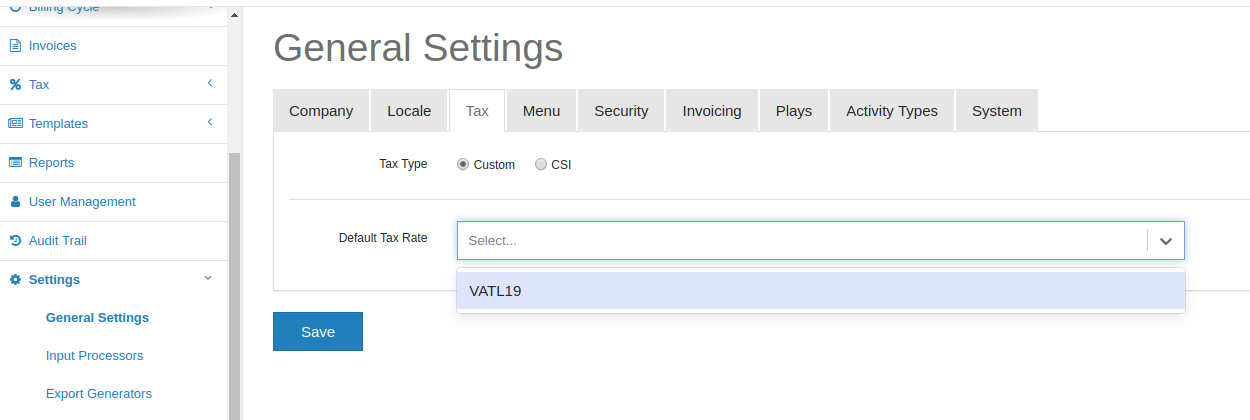
To define the default tax rate.
¶ Custom
Working with “Tax -> mapping.
Choose one of the tax rates you defined, to be the default tax rate.
For example: